
Managing Test Requests
Test requests are the core workflow units, representing requests for tire testing.
Creating a Test Request
-
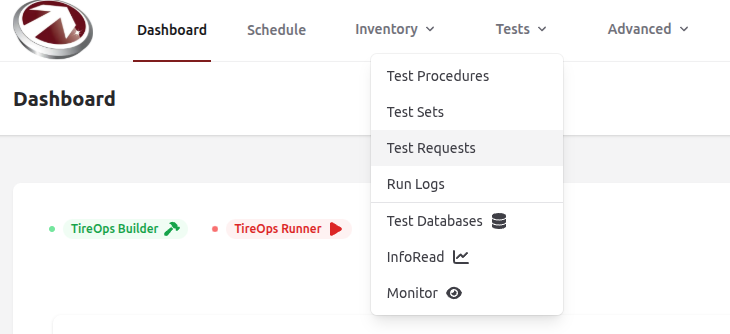
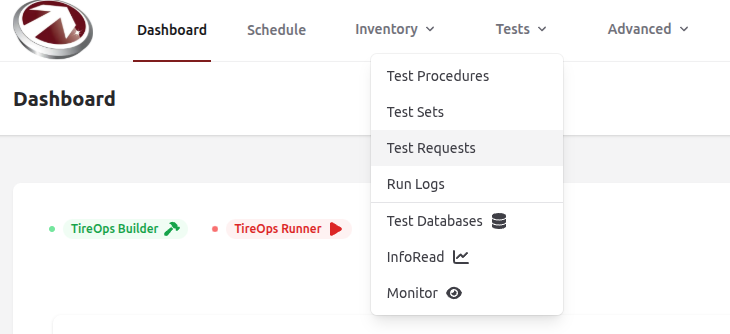
From the Dashboard Navigate to Test Requests from the Tests dropdown menu.
-
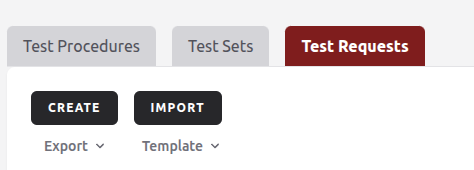
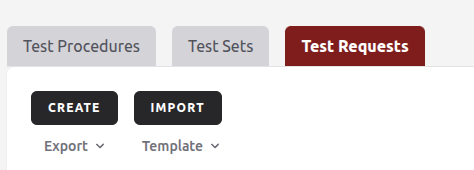
Click Create.
-
Fill in the following sections of the form:
Customer
- Customer: Select an existing customer from the dropdown (
searchable)required).
Name and Details
- Name: Enter the test request name (required).
NameandDescription:ProvideAdddetailsaaboutdescriptionthe(optional).
Status and Timing
- Status: Choose from
options likePending, In Progress, or Completed (defaults to Pending). - Hours Needed: Estimate the testing
time. Timeline: Set Start Time, End Time, and Deadlinetime (dates are timezone-aware)required).TestStartSets/ProceduresTime:SelectSpecifypredefinedthe testsetsstartordate/timeindividual procedures.(required).- End Time: Specify the test end date/time (optional).
- Deadline: Specify the test deadline (optional).
Custom Fields
- Preset: Choose a predefined set of custom fields (optional).
- Add
anyField:additional- Name: Field name (required).
- Data Type: Choose the type, e.g., String, Integer, Boolean.
- Record Time: When the data should be captured (e.g.,
viabeforetemplates)testing). File Upload: Optionally import requirements from XML/CSV/JSON files.
info - You
ClickcanSaveAdd another field.Theasrequest is created and associated with the customer. - Use Delete to remove a field.
Comments
- Add any additonal notes or comments about this test request.
Viewing and Editing Test Requests
- List View: See all requests in a table with sorting, filtering, and search.
- Details View: Click a request to view details, including status, timeline, requirements, tasks, and comments.
- Edit: If the request hasn't started (modifiable status), click Edit to update fields. Changes are logged.
Managing Requirements and Tasks
- Add/edit test requirements (e.g., tire, wheel, belt assignments) within the request details.
- Schedule tasks for execution (e.g., assign to users, set sub-order).
- Monitor build status for test definitions (e.g., via integrated builder service).
Importing Test Requests
- Click Import on the Test Requests page.
- Upload a CSV file with columns like name, description, status, hours_needed, start_time, etc.
- The system validates and imports data in batches.