
Managing Test Requests
Test requests are the core workflow units, representing requests for tire testing.
Creating a Test Request
Navigate
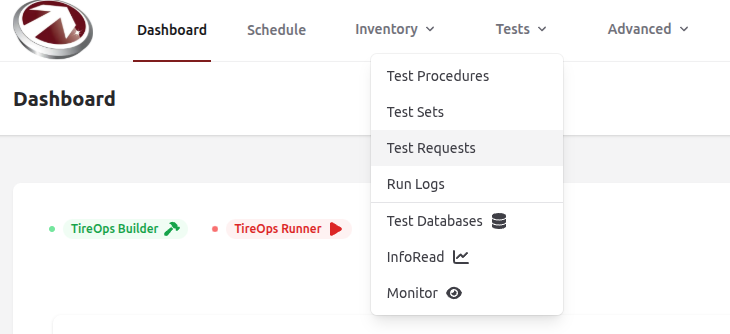
From the Dashboard Navigate to Test Requests from the Tests dropdown menu.
Create
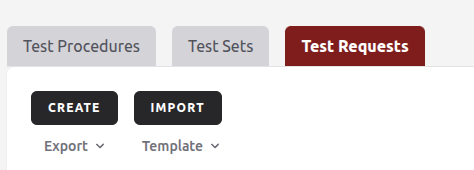
Click Create.
Fill Out the Form
Fill in the following sections of the form:
Customer
- Customer: Select an existing customer from the searchable dropdown (required).
Name and Details
- Name: Enter the test request name (required).
- Description: Add a description (optional).
Status and Timing
- Status: Choose from Pending, In Progress, or Completed (defaults to Pending).
- Hours Needed: Estimate the testing time (required).
- Start Time: Specify the test start date/time (required).
- End Time: Specify the test end date/time (optional).
- Deadline: Specify the test deadline (optional).
Custom Fields
- Preset: Choose a predefined set of custom fields (optional).
- Add Field:
- Name: Field name (required).
- Data Type: Choose the type, e.g., String, Integer, Boolean.
- Record Time: When the data should be captured (e.g., before testing).
- You can Add another field as needed.
- Use Delete to remove a field.
Task Types
- Preset: Choose a predefined set of task types.
- Add Type:
- Task Type Name: Name of the task type (required).
- Task Type Description: Describe the task type.
- Type: Can be selected as either a Test Build Task or a Test Procedure Task (only one per template).
Comments
- Add any additonal notes or comments about this test request.
- The system validates and imports data in batches.