
Creating Test Requests
Navigate
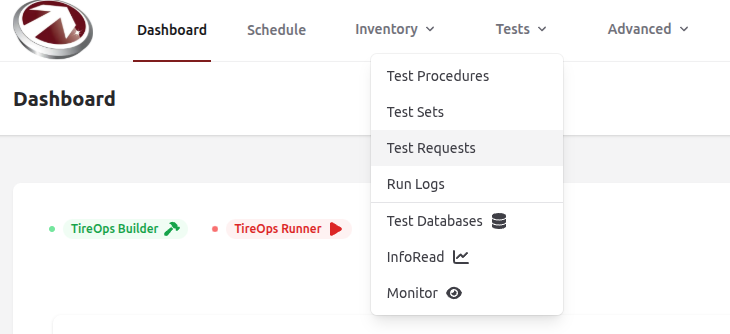
From the Dashboard Navigate to Test Requests from the Tests dropdown menu.
Create
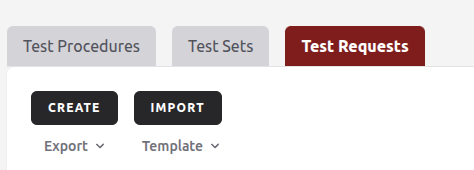
Click Create.
Fill Out the Form
Fill in the following sections of the form:
Customer
- Customer: Select an existing customer from the searchable dropdown (required).
Name and Details
- Name: Enter the test request name (required).
- Description: Add a description (optional).
Status and Timing
- Status: Choose from Pending, In Progress, or Completed (defaults to Pending).
- Hours Needed: Estimate the testing time (required).
- Start Time: Specify the test start date/time (required).
- End Time: Specify the test end date/time (optional).
- Deadline: Specify the test deadline (optional).
Custom Fields
- Preset: Choose a predefined set of custom fields (optional).
- Add Field:
- Name: Field name (required).
- Data Type: Choose the type, e.g., String, Integer, Boolean.
- Record Time: When the data should be captured (e.g., before testing).
- You can Add another field as needed.
- Use Delete to remove a field.
Task Types
- Preset: Choose a predefined set of task types.
- Add Type:
- Task Type Name: Name of the task type (required).
- Task Type Description: Describe the task type.
- Type: Can be selected as either a Test Build Task or a Test Procedure Task (only one per template).
Comments
- Add any additonal notes or comments about this test request.