
Viewing and Editing Test Requests
Navigate to the Test Requests List
From the Dashboard Navigate to Tests > Test Requests
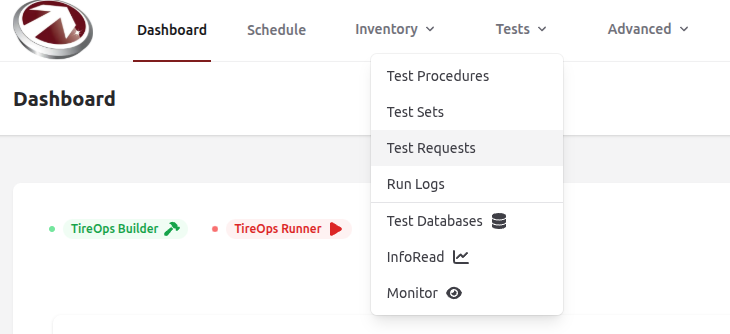
View the Test Requests List
All test requests are displayed in a table, which supports sorting, filtering, and search. Use these features to locate requests quickly.
Viewing and Managing Test Request Details
Once you click a test request in the table, you’ll see its details page with the following information.
General Information
- Name: The name of the request
- Description: A description of the request
- Hours Needed: Estimated hours to complete the request
- Start Time: Scheduled start date/time
- End Time: Scheduled end date/time
- Deadline: Completion deadline
Comments
- Add general comments or link them to specific test requirements.
- Use the Add Comment button to save your comment.
- Existing comments will appear below the input area.
Managing Requirements and Tasks
- Add or edit test requirements (e.g., assign tires, wheels, belts) within the request details.
- Schedule tasks for execution (e.g., assign to users, set sub-order).
- Monitor build status for test definitions (e.g., via the integrated builder service).
Exporting Related Data
- Run Logs: Export run logs as CSV or Excel
- Tasks: Export tasks as CSV or Excel
- Tasks Template: Export task templates as CSV or Excel
- Inventory Changes: Export inventory changes as CSV, Excel, or PDF
No comments to display
No comments to display