
Viewing and Editing Test Requests
Navigate to the Test Requests Table
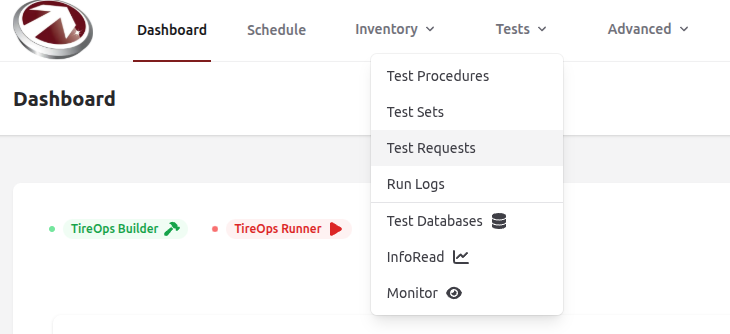
From the Dashboard, navigate to Test Requests from the Tests dropdown menu.
View the Test Requests Table
All test requests are displayed in a table, which supports sorting, filtering, and search. Use these features to locate requests quickly.
Viewing Test Request Details
Once you click a test request in the table, you’ll see the details page with the following information.
General Information
- Name: The name of the request
- Description: A description of the request
- Hours Needed: Estimated hours to complete the request
- Start Time: Scheduled start date/time
- End Time: Scheduled end date/time (optional)
- Deadline: Completion deadline (optional)
Viewing Test Request Details
Once you click a test request in the table, you’ll see the details page with the following information.
General Information
- Name: The name of the request
- Description: A description of the request
- Hours Needed: Estimated hours to complete the request
- Start Time: Scheduled start date/time
- End Time: Scheduled end date/time (optional)
- Deadline: Completion deadline (optional)
Comments
- Add general comments or link them to specific test requirements.
- Use the Add Comment button to save your comment.
- Existing comments will appear below the input area.
Test Requirements and Tasks
You can view, edit, delete or create tasks associated with the test request:
Task Name: The name of the task (required)
Description: A short description of the task (optional)
Scheduled At: The scheduled time of the task (required)
Assignee: The user assigned to the task (required)
Status:: pending, paused, In Progress, aborted, or completed (required)
UseCreate New Taskto add a custom task.Bulk actions like reorder, import, and export are available via the buttons at the top of the task table.
Export Options
- Run Logs: Export run logs as CSV or Excel
- Tasks: Export tasks as CSV or Excel
- Tasks Template: Export tasks template as CSV or Excel
- Inventory Changes: Export inventroy changes as CSV, Excel, or PDF